
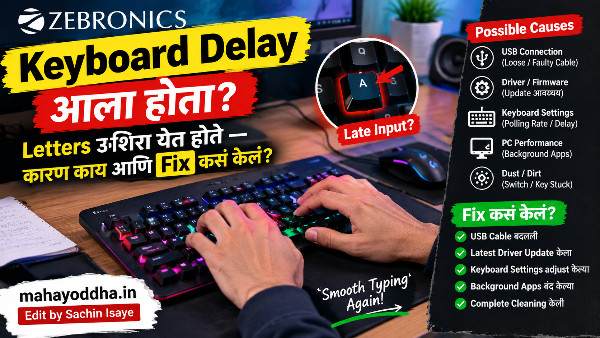
Keyboard Delay आला होता — Screen वर Letters उशिरा येत होते. काय झालं होतं आणि कसं Fix केलं
दोन महिन्यांपूर्वी एक frustrating problem सुरू झाला.
Type करायचो — screen वर letters एक ते दोन seconds नंतर यायचे. “Hello” type केलं — “H” आलं, pause, “ello” आलं. Fast typing केली तर letters queue होत होते — एकत्र burst मध्ये screen वर यायचे.
सुरुवातीला वाटलं laptop slow आहे. Task Manager बघितलं — CPU normal होतं. RAM normal होतं.
मग keyboard specifically test केलं — Notepad उघडलं, type केलं. Same delay.
Research केलं. दोन तासांत problem completely fix झाला. कारण unexpected होतं — Filter Keys accidentally enabled झाले होते.
आज Mahayoddha.in वर keyboard delay चे सगळे causes आणि fixes explain करतो — situation नुसार.
Keyboard Delay म्हणजे नक्की काय होतं — Types समजून घ्या
Keyboard delay एक नाही — multiple types आहेत. Type ओळखलं की fix faster होतो.
Type एक — Input Lag
Key press केली, screen वर letter येण्यास वेळ लागतो. One ते two seconds delay. माझ्यासोबत हेच झालं होतं.
Type दोन — Repeat Delay
Key hold केली — repeat सुरू व्हायला जास्त वेळ लागतो. Normal behavior मध्ये key hold केली की थोड्या वेळाने letter repeat होतो. Delay जास्त असेल तर frustrating वाटतो.
Type तीन — Wireless Lag
Wireless keyboard मध्ये input delay येतो. Signal interference, battery कमी, dongle position — causes असतात. Mahayoddha.in वर Wireless Keyboard Lag article आहे — detail मध्ये explain केलं आहे.
Type चार — Intermittent Delay
कधी normal, कधी delay. Inconsistent. USB connection issue किंवा driver problem असतो.
Cause एक — Filter Keys (सगळ्यात Common)
माझ्यासोबत हेच झालं होतं. Filter Keys Windows accessibility feature आहे — accidentally enable होतो.
Filter Keys enable असेल तर — keyboard input slow होतो intentionally. Rapid keystrokes ignore केले जातात. Purpose होता tremor असलेल्या users साठी — पण accidentally enable झालं की nightmare आहे.
कसं Enable होतं accidentally:
Right Shift key आठ seconds hold केली की Filter Keys enable होतो. Fast typing मध्ये, gaming मध्ये — accidentally होऊ शकतो.
Fix — Windows 11:
Settings उघडा. Accessibility वर जा. Keyboard section. Filter Keys toggle — OFF करा.
Fix — Windows 10:
Settings. Ease of Access. Keyboard. Filter Keys — OFF करा.
Keyboard shortcut fix:
Right Shift key आठ seconds hold करा — Filter Keys toggle होतो. Confirmation dialog येतो — “Turn Off Filter Keys” select करा.
माझा problem हाच होता. Filter Keys OFF केल्यावर immediately delay गेला.
Cause दोन — Keyboard Repeat Rate Settings
Windows मध्ये keyboard repeat rate settings असतात. Default settings slow असतील तर typing sluggish वाटतो.
Fix:
Control Panel उघडा. Search करा “keyboard.” Keyboard Properties उघडा. Speed tab.
दोन sliders दिसतील.
Repeat Delay — Key किती वेळ hold केल्यावर repeat सुरू होतो. “Short” बाजूला न्या.
Repeat Rate — Repeat किती speed ने होतो. “Fast” बाजूला न्या.
Test area आहे खाली — key hold करून test करा. Settings comfortable वाटेपर्यंत adjust करा. Apply करा. OK.
हे settings change केल्यावर typing responsive वाटतो.
Cause तीन — USB Connection Issue
Wired keyboard USB port मध्ये properly connected नसेल तर intermittent delay येतो.
Fix Steps:
Keyboard cable unplug करा. दुसऱ्या USB port मध्ये लावा. Test करा.
USB Hub वापरत असाल तर — Hub काढा, directly PC च्या port मध्ये लावा. Hub insufficient power देतो कधी कधी.
USB 3.0 port (blue color) वापरत असाल — USB 2.0 port (black color) try करा. RF wireless keyboards 2.4GHz वापरतात — USB 3.0 interference create करतो. Mahayoddha.in वर Wireless Keyboard Lag article मध्ये हे explain आहे.
Cable visually inspect करा — bent, damaged असेल तर replace करा.
Cause चार — Keyboard Driver Issue
Windows update नंतर keyboard driver corrupt होतो कधी कधी. Delay, missed keystrokes, erratic behavior येतो.
Fix — Driver Reinstall:
Windows key + X दाबा. Device Manager उघडा. Keyboards section expand करा. Keyboard वर right-click करा. “Uninstall Device” select करा.
Keyboard unplug करा. तीस seconds wait करा. पुन्हा connect करा. Windows automatically fresh driver install करेल.
Restart करा. Test करा.
Fix — Driver Rollback:
Windows update नंतर problem आला असेल तर driver rollback करा.
Device Manager. Keyboard वर right-click. Properties. Driver tab. “Roll Back Driver” button. Previous driver restore होतो.
Mahayoddha.in वर Keyboard Driver Update article आहे — detail मध्ये explain केलं आहे.
Cause पाच — System Performance Issue
CPU किंवा RAM overloaded असेल तर keyboard input process होण्यास वेळ लागतो.
Check करा:
Ctrl + Shift + Esc — Task Manager उघडा. CPU percentage बघा. RAM percentage बघा.
CPU consistently 90%+ असेल — background processes जास्त आहेत. RAM 90%+ असेल — memory issue.
Fix:
Task Manager मध्ये unnecessary background processes end करा. Startup apps disable करा — Startup tab मध्ये. Mahayoddha.in वर Task Manager article आहे — detail मध्ये.
Antivirus scan चालत असेल तर wait करा — scan complete झाल्यावर keyboard normal होतो.
Heavy software बंद करा — multiple browsers, video editors.
Cause सहा — Wireless Keyboard Specific Issues
Wireless keyboard असेल तर additional causes आहेत.
Battery कमी:
Low battery — weak signal — delay. Battery replace करा. Alkaline batteries वापरा — budget carbon zinc cells avoid करा. Mahayoddha.in वर Wireless Keyboard Battery article आहे.
Dongle Position:
RF dongle PC च्या मागे लावला असेल — keyboard समोर आहे, dongle मागे — signal weak होतो. Dongle front panel ला लावा. USB extension cable वापरून dongle keyboard जवळ आणा.
Interference:
WiFi router keyboard जवळ असेल — 2.4GHz interference. Router दूर ठेवा किंवा 5GHz band वर switch करा.
Bluetooth Specific:
Bluetooth keyboard असेल — unpair करा, पुन्हा fresh pair करा. Multiple Bluetooth devices connected असतील — unused devices disconnect करा.

Cause सात — Hardware Issue
सगळे software fixes try केले, delay अजून आहे — hardware problem असू शकतो.
Keyboard दुसऱ्या PC वर test करा:
तिथे normal काम करतो — PC settings/software issue आहे.
तिथेही delay — keyboard hardware problem आहे.
Keycaps आणि Switch:
Specific keys delay करत असतील — switch issue असू शकतो. Alcohol cleaning try करा. Mahayoddha.in वर Keyboard Cleaning आणि Key Stuck articles आहेत.
Diagnosis Table — Problem ओळखा, Fix ठरवा
| Symptom | Most Likely Cause | First Fix |
|---|---|---|
| सगळ्या keys delay करतात | Filter Keys ON | Settings मधून OFF करा |
| Type करताना burst मध्ये letters येतात | Filter Keys / Repeat Rate | Filter Keys OFF, Repeat Rate adjust |
| Wireless keyboard delay | Battery / Dongle position | Battery change, Dongle move |
| Update नंतर delay आला | Driver issue | Driver rollback/reinstall |
| Specific keys delay | Switch issue | Alcohol cleaning |
| Intermittent delay | USB connection | Different port try करा |
| Heavy use दरम्यान delay | System overload | Task Manager, processes close |
| Bluetooth delay | Pairing issue | Re-pair करा |
FAQ
Q. Gaming मध्ये keyboard delay येतो पण normal typing मध्ये नाही — का?
Game specific issue असू शकतो. Game keyboard polling rate properly handle नाही करत. Game settings मध्ये input delay options check करा. Windows Game Mode — Settings, Gaming, Game Mode — ON आहे का check करा. Antivirus game दरम्यान scan करत असेल — exclude game folder from scan.
Q. Laptop built-in keyboard delay येतो — external keyboard normal आहे. Fix काय?
Built-in keyboard hardware issue असू शकतो. Driver specifically built-in keyboard साठी reinstall करा. BIOS update available असेल तर update करा — keyboard controller firmware improve होतो. Physical damage, liquid spill history असेल — service center.
Q. Mechanical keyboard मध्ये specific switch slow respond करतो — delay येतो. Fix काय?
Switch contact dirty असेल. Keycap काढा. Isopropyl alcohol earbud ने switch stem आणि housing clean करा. Dry होऊ द्या. Test करा. Hot-swap keyboard असेल तर switch replace करा. Mahayoddha.in वर Switch Cleaning articles आहेत.
Q. Filter Keys OFF केलं, पुन्हा enable होतंय — permanently disable कसं करायचं?
Filter Keys settings मध्ये “Allow the shortcut key to start Filter Keys” option आहे — हे UNCHECK करा. आता Right Shift eight seconds hold केलं तरी enable होणार नाही. Settings → Accessibility → Keyboard → Filter Keys → Settings → Keyboard shortcut.
Q. Keyboard delay आणि double typing दोन्ही येतात — related आहेत का?
Different issues आहेत generally. Delay — slow input. Double typing — same key multiple times register. पण Filter Keys आणि Repeat settings दोन्हींवर impact करतात. Filter Keys OFF करा, Repeat Rate/Delay adjust करा — दोन्ही improve होऊ शकतात. Mahayoddha.in वर Double Typing Fix article आहे — detail मध्ये.
Conclusion
Filter Keys accidentally enable झाले होते — दोन तासांत problem fix झाला. Embarrassingly simple solution होतं.
Keyboard delay frustrating आहे — typing flow completely breaks होतो. पण बहुतेक cases मध्ये software fix पुरतं. Filter Keys, Repeat Rate settings, Driver reinstall — या तीन fixes नव्वद टक्के keyboard delay problems solve करतात.
Mahayoddha.in वर नेहमी practical approach देतो — नवीन keyboard घेण्याआधी existing keyboard fix करण्याचा प्रयत्न करा. बहुतेक वेळा पाच ते दहा मिनिटांत problem solve होतो.
तुम्हाला keyboard delay येतो का? कोणत्या situation मध्ये — typing, gaming, किंवा specific apps मध्ये? Comment मध्ये सांगा — specific situation नुसार better suggest करता येईल.

Sachin Isaye
सचिन इसाये
नमस्कार! मी सचिन इसाये, Founder of Mahayoddha.in. २०१७ पासूनच्या माझ्या Blogging आणि Digital Content क्षेत्रातील अनुभवाचा वापर करून, मी Keyboard, Typing Speed, Windows Shortcuts आणि Digital Skills यांसारख्या विषयांवर सोप्या मराठीत practical माहिती देण्याचा प्रयत्न करतो.
Keyboard Buying Guide, Mechanical Keyboard, Wireless Keyboard, Keyboard Problems, Keyboard Typing Skills आणि Keyboard Ergonomics यांसारखे विषय सामान्य मराठी वाचकांना सहज समजावून सांगणे, हेच माझे काम आहे.
विद्यार्थी, Bloggers, Content Writers, Office Users, Work From Home करणारे आणि नवीन computer users यांना keyboard वापरून आपलं काम जलद, सोपं आणि smart करता यावं, हेच माझं ध्येय आहे. नवीन Keyboard Guides, Typing Tips आणि Windows Shortcuts साठी Mahayoddha.in ला नियमित भेट द्या.