
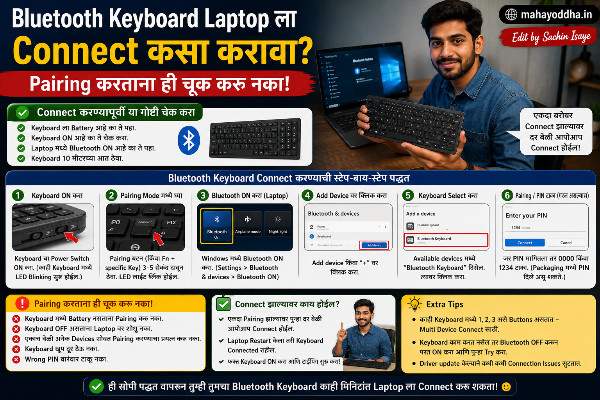
Bluetooth Keyboard Laptop ला Connect करताना एक गोष्ट माहीत नव्हती — त्यामुळे अर्धा तास गेला
तीन महिन्यांपूर्वी नवीन Bluetooth keyboard घेतला.
Box उघडला, keyboard on केला, laptop वर Bluetooth settings उघडली — keyboard detect झाला. Connect केला. एक PIN code आला screen वर. तो PIN laptop वर type केला — connect नाही झाला.
पुन्हा try केला. पुन्हा नाही झाला. “Wrong PIN” असं message नाही आलं, simply connect नाही झालं. अर्धा तास गेला वेगवेगळे PIN try करण्यात.
मग एक article वाचला — PIN laptop वर नाही, keyboard वर type करायचा असतो.
इतकं obvious होतं पण माहीत नव्हतं. Keyboard वर PIN type केला, Enter दाबला, connected.
हा एक गोष्ट माहीत नसल्याने बरेच जण अडकतात. आज Mahayoddha.in वर हे properly explain करतो — Bluetooth keyboard connect करणं step by step, आणि जिथे लोक अडकतात त्या exact points वर जास्त focus.
आधी हे समजा — Bluetooth Pairing म्हणजे काय
Connect करण्याआधी concept एकदा clear करतो.
Bluetooth pairing म्हणजे दोन devices एकमेकांना “ओळखायला” शिकतात. First time connect करताना ही process होते. एकदा paired झालं की दोन्ही devices एकमेकांचा identity store करतात — पुढच्या वेळी automatically connect होतात.
PIN code का येतो? Security साठी. कोणीही randomly तुमच्या keyboard ला connect करू नये म्हणून. PIN confirm करणं म्हणजे “हो, मीच connect करतोय” असं verify करणं.
आणि हा PIN — जो screen वर दिसतो — तो keyboard वर type करायचा असतो, laptop वर नाही. Keyboard ला सांगायचं आहे की “हो, या laptop शी connect हो.” हे माहीत नसलं तर पहिल्यांदा अडकणं guaranteed आहे.
Step 1 — Keyboard Pairing Mode मध्ये टाका
हे सगळ्यात पहिलं करायचं आहे, laptop settings नंतर.
Keyboard on करा. Bluetooth pairing button शोधा — बऱ्याच keyboards मध्ये dedicated Bluetooth button असतो, काहींमध्ये Fn key combination असतं.
Common keyboards मध्ये कसं करायचं:
Logitech keyboards मध्ये — keyboard च्या bottom ला किंवा top ला Easy-Switch button असतो. तो तीन ते पाच seconds hold करा. LED rapidly blink करायला लागेल — pairing mode आहे.
Portronics, Zebronics सारख्या budget keyboards मध्ये — Fn + Bluetooth key combination असतं. Manual मध्ये exact combination असतं.
Multi-device keyboards मध्ये — एक keyboard तीन devices ला pair होतो. Keys वर 1, 2, 3 numbers असतात. ज्या slot मध्ये laptop pair करायचा त्या number ला तीन seconds hold करा — pairing mode त्या slot साठी.
LED बघा — Rapidly blinking म्हणजे pairing mode ON. Slowly blinking किंवा solid म्हणजे already connected आहे कुठेतरी. Solid off म्हणजे battery कमी आहे किंवा keyboard off आहे.
Pairing mode time-limited असतो — साधारण दोन ते तीन मिनिटे. त्या वेळात connect नाही झालं तर timeout होतो आणि पुन्हा pairing mode activate करावा लागतो.
Step 2 — Laptop वर Bluetooth ON करा आणि Device Add करा
Windows 11 मध्ये
Start button click करा, Settings उघडा. “Bluetooth & devices” select करा. Bluetooth toggle ON करा.
“Add device” button दिसेल — click करा. एक popup येईल. “Bluetooth” select करा. Laptop आता nearby Bluetooth devices search करेल.
Windows 10 मध्ये
Settings, Devices, Bluetooth & other devices. Bluetooth ON करा. “Add Bluetooth or other device” click करा. “Bluetooth” select करा.
Mac मध्ये
System Settings, Bluetooth, ON करा. Nearby devices automatically दिसतात.
Step 3 — List मध्ये Keyboard Select करा
Laptop searching करत असताना keyboard चं नाव list मध्ये दिसेल — “Logitech K380”, “Portronics Keyboard”, किंवा keyboard चं generic नाव.
दिसलं की click करा.
दिसत नाहीये? तर:
Keyboard pairing mode मध्ये आहे का ते confirm करा — LED blink होतोय का.
Battery check करा — कमी battery असेल तर Bluetooth signal weak असतो.
Laptop आणि keyboard जवळ आहेत का — initially एक मीटर अंतरात ठेवा.
Keyboard आधी दुसऱ्या device ला connected आहे का — connected असेल तर त्या device वरून “Forget device” करा, मग पुन्हा pairing mode activate करा.
Step 4 — PIN Code — हे Most Important Step आहे
Keyboard select केल्यावर laptop screen वर six digit number दिसेल — उदाहरण म्हणून “482915.”
हा number laptop च्या keyboard वर type करायचा नाही.
हा number नवीन Bluetooth keyboard वर type करायचा आहे.
Bluetooth keyboard ला confirm करायचं आहे की “हो, या laptop शी connect हो.” म्हणून PIN keyboard वर type करायचा.
Number type करा — screen वर काहीच दिसणार नाही, ते normal आहे. Type झाल्यावर Enter press करा.
“Device added successfully” किंवा “Connected” message येईल.
PIN नाही आला? काही keyboards मध्ये PIN नसतो — automatically connect होतात. हे keyboard model वर अवलंबून आहे. PIN आलं नाही तर connected झालं का ते check करा.
Step 5 — Connection Confirm करा
Notepad किंवा कुठलंही text field उघडा. Bluetooth keyboard वर काही type करा. येतंय का screen वर? आलं तर connected.
Connected नाही दिसत Settings मध्ये पण typing होतेय — हे होतं. Trust करा typing ला.
Common Problems आणि Fixes
Keyboard list मध्ये दिसत नाही
Pairing mode timeout झाला असेल — पुन्हा activate करा. Battery कमी असेल — replace करा. Keyboard already paired आहे दुसऱ्या device ला — त्या device वरून forget करा आणि pुन्हा try करा.
PIN type केला, connect नाही झालं
PIN laptop वर type केला असेल — keyboard वर type करायचा होता. पुन्हा pairing mode activate करा, process restart करा. PIN type करताना जलद करा — PIN screen वर limited time दिसतो.
Connected दिसतं पण typing होत नाही
Keyboard चा correct slot selected आहे का — multi-device keyboard असेल तर. Device Manager मध्ये keyboard listed आहे का. Laptop restart करा, keyboard reconnect होईल.
Auto connect होत नाही पुढच्या वेळी
Laptop Bluetooth off असेल तर keyboard connect होत नाही. Laptop startup ला Bluetooth automatically on होतं का ते check करा — Settings मध्ये Bluetooth settings मध्ये “Allow Bluetooth devices to find this PC” enabled असावं.
Quick Checklist — Connect करण्याआधी हे confirm करा
| Check | कसं Confirm करायचं |
|---|---|
| Keyboard battery OK आहे? | LED clearly blink होतेय |
| Pairing mode ON आहे? | Rapid LED blinking |
| Laptop Bluetooth ON आहे? | Settings मध्ये toggle ON |
| दुसऱ्या device ला connected नाही? | त्या device वरून forget केलं |
| PIN keyboard वर type केला? | Laptop वर नाही |
| Keyboard range मध्ये आहे? | एक मीटर अंतरात |
FAQ
Q. एकदा connected झाल्यावर पुढच्या वेळी पुन्हा PIN लागेल का?
नाही. एकदा paired झाल्यावर devices एकमेकांना ओळखतात. Laptop on केला आणि keyboard on केला की automatically connect होतं — PIN फक्त first time लागतो.
Q. Keyboard दोन laptops ला pair करता येतो का?
Multi-device keyboard असेल तर हो — तीन devices पर्यंत. प्रत्येक slot ला वेगळ्या device ला pair करता येतो. Switch करायला specific button hold करायचा. Single device keyboard असेल तर एकाच वेळी एकच device.
Q. Mobile ला connect करायचं असेल तर process वेगळा आहे का?
Process same आहे — फक्त laptop Settings ऐवजी phone च्या Bluetooth settings मध्ये जायचं. Android मध्ये Settings, Connected Devices, Pair New Device. iPhone मध्ये Settings, Bluetooth. बाकी process exactly same आहे.
Q. Connected आहे पण काही keys काम करत नाहीत — का?
Bluetooth connection established आहे पण driver issue असेल. Device Manager मध्ये keyboard check करा — error आहे का. Keyboard unpair करा, पुन्हा fresh pair करा. तरी नाही झालं तर manufacturer website वरून driver download करा.
Q. Bluetooth keyboard laptop च्या किती अंतरापर्यंत काम करतो?
Standard Bluetooth range दहा मीटर आहे. पण walls, interference, आणि keyboard quality नुसार actual range कमी असतो. Practically पाच ते सात मीटर reliable range आहे. Gaming setup मध्ये जवळ असतो त्यामुळे range problem येत नाही.
Conclusion
त्या दिवशी अर्धा तास गेला फक्त एका गोष्टीमुळे — PIN laptop वर नाही, keyboard वर type करायचा असतो. हे एकदा कळलं की connection दहा seconds मध्ये होतं.
Bluetooth keyboard connect करणं genuinely simple आहे. Pairing mode ON, laptop वर Add Device, keyboard select करा, PIN keyboard वर type करा, Enter. इतकंच.
Mahayoddha.in वर आम्ही नेहमी practical tips देतो — theory नाही, actual experience वरून. एकदा process माहीत झाली की पुढच्या वेळी दोन मिनिटांत होतं.
तुम्हाला connect करताना PIN मध्ये problem आला होता का? Comment मध्ये सांगा — नक्की उपयोगी येईल इतरांना.

Sachin Isaye
सचिन इसाये
नमस्कार! मी सचिन इसाये, Founder of Mahayoddha.in. २०१७ पासूनच्या माझ्या Blogging आणि Digital Content क्षेत्रातील अनुभवाचा वापर करून, मी Keyboard, Typing Speed, Windows Shortcuts आणि Digital Skills यांसारख्या विषयांवर सोप्या मराठीत practical माहिती देण्याचा प्रयत्न करतो.
Keyboard Buying Guide, Mechanical Keyboard, Wireless Keyboard, Keyboard Problems, Keyboard Typing Skills आणि Keyboard Ergonomics यांसारखे विषय सामान्य मराठी वाचकांना सहज समजावून सांगणे, हेच माझे काम आहे.
विद्यार्थी, Bloggers, Content Writers, Office Users, Work From Home करणारे आणि नवीन computer users यांना keyboard वापरून आपलं काम जलद, सोपं आणि smart करता यावं, हेच माझं ध्येय आहे. नवीन Keyboard Guides, Typing Tips आणि Windows Shortcuts साठी Mahayoddha.in ला नियमित भेट द्या.