
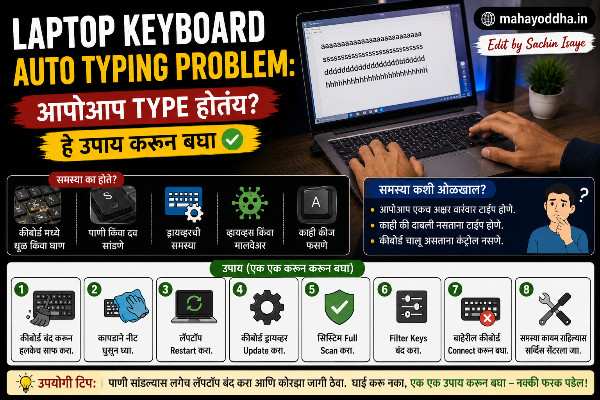
चार महिन्यांपूर्वी एक weird situation झाली.
रात्री काम करत होतो, थोडा वेळ उठलो, परत आलो — screen वर random characters भरलेले होते. “gggggggggg” असं पानभर. Keyboard ला touch नाही केलं होतं, पण typing झाली होती. Laptop Keyboard Auto Typing Problem.
हे Ghost Typing आहे — laptop keyboard मधली एक key stuck होती आणि ती continuously register होत होती.
त्या वेळी external keyboard होता माझ्याकडे. Built-in keyboard disable केला तर external वापरता येईल आणि ghost typing बंद होईल. पण disable कसं करायचं हे माहीत नव्हतं.
Research केलं, methods try केल्या, आणि आज जे शिकलो ते तुमच्यासाठी लिहितो. Laptop keyboard disable करण्याच्या तीन methods आहेत — प्रत्येकाची situation वेगळी आहे, use case वेगळा आहे.
Laptop Keyboard Disable का करायचा — Situations समजून घ्या
हे article वाचत असाल तर यापैकी एक situation असेल.
Ghost Typing — keyboard आपोआप type करतोय, कुणी touch नाही केलं तरी. एखादी key stuck आहे आणि continuously register होतेय. हे liquid spill नंतर होतं, dust जमल्यावर होतं, किंवा key mechanism worn झाल्यावर होतं.
External Keyboard वापरतो, Built-in Disturb करतो — desktop setup साठी external mechanical keyboard connect केला आहे. Accidentally built-in keyboard touch होतो आणि typing disturb होते. Gaming करताना palm built-in keyboard वर येतो.
Built-in Keyboard Partially Broken — काही keys काम करत नाहीत, काही double type करतात. Repair expensive आहे. External keyboard वापरून काम चालवायचं आहे.
Cleaning किंवा Repair साठी Temporary Disable — keyboard deep clean करायचं आहे, liquid spill झालंय dry होऊ दे, किंवा तात्पुरतं बंद हवं आहे.
Situation कोणती आहे त्यानुसार method निवडायची आहे.
Method एक — Device Manager मधून Uninstall
हे कधी वापरायचं
Temporary disable हवं असेल — म्हणजे restart केल्यावर keyboard परत चालू झालं तरी चालेल — तर हे method आहे. Ghost typing तात्पुरती बंद करायची असेल, cleaning साठी थोडा वेळ disable करायचं असेल.
Step by Step
Start button right click करा, Device Manager उघडा.
“Keyboards” section expand करा. दोन items दिसतील बहुतेक — “HID Keyboard Device” हे external keyboard असेल जर connected असेल, आणि “Standard PS/2 Keyboard” किंवा laptop च्या नावाने built-in keyboard असेल.
Important — चुकीचा keyboard uninstall करू नका. External keyboard connected असेल तर आधी disconnect करा, मग Device Manager मध्ये बघा — जो उरतो तो built-in आहे.
Built-in keyboard right click करा, “Uninstall Device” select करा. Confirm करा.
Restart करू नका. Restart केलं की Windows automatically driver reinstall करतो आणि keyboard परत चालू होतो.
Restart न करता keyboard disabled राहतो — current session मध्ये external keyboard वापरता येतो. PC बंद केलं आणि पुन्हा चालू केलं की built-in keyboard परत येतो.
Method दोन — Wrong Driver Trick
हे कधी वापरायचं
Permanent disable हवं असेल — restart केल्यावर पण built-in keyboard बंद राहावं — तर हे method आहे. Ghost typing permanently बंद करायची असेल, built-in keyboard permanently external ने replace करायचा असेल.
Step by Step
Device Manager उघडा. Keyboards section मध्ये built-in keyboard right click करा. “Update Driver” select करा.
“Browse my computer for drivers” select करा.
“Let me pick from a list of available drivers on my computer” select करा.
“Show compatible hardware” चा checkbox uncheck करा. हे important step आहे. हे uncheck केल्यावर incompatible drivers दिसतात.
List मधून कोणताही random, clearly incompatible driver select करा — “Microsoft” manufacturer चा कोणताही keyboard नसलेला driver. “USB Input Device” किंवा तत्सम select करू नका — ते work करू शकतो.
Next click करा. Warning येईल “This driver may not be compatible” — Yes करा.
Restart करा.
Restart नंतर laptop keyboard wrong driver असल्याने Windows ला समजत नाही — disabled राहतो. External keyboard perfectly काम करतो.
परत Enable कसं करायचं
Device Manager, keyboard right click, Update Driver, “Search automatically.” Windows correct driver install करेल, restart करा — keyboard परत चालू.
Method तीन — Registry Edit
हे कधी वापरायचं
Wrong driver trick काम नाही केलं, किंवा तुम्हाला cleaner solution हवं असेल — Registry edit हे reliable permanent method आहे.
Warning — Registry edit करताना careful असावं लागतं. Wrong key edit केला तर system issues होऊ शकतात. Exactly सांगेन तसं करा, extra काही touch करू नका.
Step by Step
Windows key + R दाबा. “regedit” टाइप करा, Enter.
Address bar मध्ये हे paste करा:
HKEY_LOCAL_MACHINE\SYSTEM\CurrentControlSet\Services\i8042prt
उजव्या बाजूला “Start” नावाची value दिसेल. त्यावर double click करा.
Value data “1” असेल. ते बदलून “4” करा. OK करा.
Restart करा.
“4” म्हणजे service disabled. Laptop keyboard चा driver service start होत नाही — keyboard काम करत नाही.
परत Enable कसं करायचं
Same registry location ला जा, Start value “4” वरून “1” करा, restart करा — keyboard परत चालू.
Method चार — Physical Ribbon Cable Disconnect
हे कधी वापरायचं
Software methods काम नाही केल्या, permanently hardware level disable हवं आहे, किंवा keyboard physically broken आहे आणि short circuit होतोय — तर हे करा.
हे advanced method आहे. Laptop उघडण्याचा अनुभव नसेल तर हे self करू नका — service center ला घेऊन जा.
Concept
Laptop keyboard एका ribbon cable ने motherboard ला connected असतो. हा cable disconnect केला की keyboard permanently dead होतो — software level नाही, hardware level.
Laptop चं back cover काढायचं, keyboard ribbon cable ची connector locate करायची, आणि carefully disconnect करायची.
Laptop model specific आहे हे process. YouTube वर तुमच्या exact laptop model चं “keyboard ribbon cable removal” video search करा. Different laptops मध्ये access करण्याची method वेगळी असते.
Ribbon cable delicate असतो — force लावला तर tear होतो. एकदा disconnect केलं की reconnect करणं शक्य आहे — permanent नाही, reversible आहे.
कोणती Method कधी वापरायची
| Situation | Best Method | Permanent? | Technical Difficulty |
|---|---|---|---|
| Ghost typing, temporary बंद हवं | Uninstall Device | नाही, restart नंतर येतो | Easy |
| Ghost typing, permanently बंद हवं | Wrong Driver / Registry | हो | Medium |
| Cleaning साठी तात्पुरतं | Uninstall Device | नाही | Easy |
| External keyboard permanent setup | Registry Edit | हो | Medium |
| Hardware completely broken | Ribbon Cable | हो, reversible | Advanced |
| Software methods काम नाही केल्या | Ribbon Cable | हो, reversible | Advanced |
FAQ
Q. Uninstall केलं, restart नाही केलं, पण keyboard अजून type करतोय — का?
Uninstall process मध्ये थोडा delay असतो. एकदा Uninstall confirm झाल्यावर keyboard बंद व्हायला काही seconds लागतात. तरी चालत असेल तर Task Manager उघडा — explorer.exe restart करा. किंवा Wrong Driver method try करा जी more reliable आहे.
Q. Wrong Driver method केली, restart झाला, पण keyboard अजून चालतोय — का?
Selected driver चुकीचा compatible निघाला असेल. Device Manager मध्ये keyboard बघा — error show होतोय का. नसेल तर पुन्हा try करा, वेगळा incompatible driver select करा. Registry method जास्त reliable आहे या situation साठी.
Q. Registry edit केलं, laptop restart नाही होत आहे / boot issue येतोय — काय करू?
Windows Recovery Mode मध्ये जा — restart करताना F8 किंवा Shift + Restart. “Startup Repair” किंवा “System Restore” try करा. Registry change undo होईल. म्हणूनच registry edit करण्याआधी System Restore point create करणं recommended आहे.
Q. दोन keyboards Device Manager मध्ये दिसत आहेत, कोणता built-in आहे?
External keyboard disconnect करा. Device Manager refresh करा — जो disappear होतो तो external होता. जो राहतो तो built-in आहे. आता built-in वर method apply करा.
Q. Disable केल्यावर Windows Login screen वर keyboard लागतो — external keyboard नसेल तर login कसं करू?
हे practical concern आहे. Disable करण्याआधी external keyboard ready ठेवा किंवा Windows PIN/Password लक्षात ठेवा जेणेकरून on-screen keyboard वापरता येईल. Login screen वर on-screen keyboard Ease of Access button मधून उघडता येतो.
Conclusion
त्या रात्री ghost typing problem होता तेव्हा built-in keyboard disable करण्याचा option माहीत नव्हता. शोधलं, शिकलो, केलं — Wrong Driver method वापरली आणि built-in keyboard permanently disabled झाला. External keyboard perfect काम करतोय तेव्हापासून.
तीन software methods आहेत — Uninstall, Wrong Driver, Registry. तिन्हींमधला fark simple आहे. Temporary हवं तर Uninstall. Permanent हवं तर Wrong Driver किंवा Registry. Software methods fail झाल्या किंवा hardware level solution हवं तर Ribbon Cable.
आपली situation कोणती आहे ते आधी ठरवा, मग त्यानुसार method निवडा.
Ghost Typing चा problem आहे का तुम्हाला? किंवा वेगळ्या कारणासाठी disable करायचं आहे? Comment मध्ये सांगा.

Sachin Isaye
सचिन इसाये
नमस्कार! मी सचिन इसाये, Founder of Mahayoddha.in. २०१७ पासूनच्या माझ्या Blogging आणि Digital Content क्षेत्रातील अनुभवाचा वापर करून, मी Keyboard, Typing Speed, Windows Shortcuts आणि Digital Skills यांसारख्या विषयांवर सोप्या मराठीत practical माहिती देण्याचा प्रयत्न करतो.
Keyboard Buying Guide, Mechanical Keyboard, Wireless Keyboard, Keyboard Problems, Keyboard Typing Skills आणि Keyboard Ergonomics यांसारखे विषय सामान्य मराठी वाचकांना सहज समजावून सांगणे, हेच माझे काम आहे.
विद्यार्थी, Bloggers, Content Writers, Office Users, Work From Home करणारे आणि नवीन computer users यांना keyboard वापरून आपलं काम जलद, सोपं आणि smart करता यावं, हेच माझं ध्येय आहे. नवीन Keyboard Guides, Typing Tips आणि Windows Shortcuts साठी Mahayoddha.in ला नियमित भेट द्या.