Windows Accessibility Features — हे फक्त Disabled Users साठी नाहीत, सगळ्यांसाठी Useful आहेत
“Accessibility” हा शब्द ऐकला की बहुतेक लोक विचार करतात — “हे माझ्यासाठी नाही, मला त्याची गरज नाही.”
हा misconception आहे.
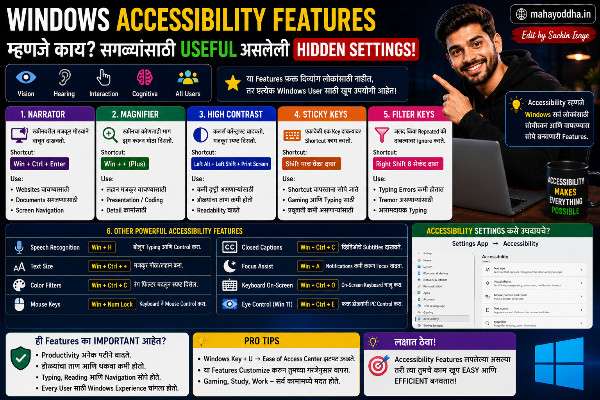
Windows Accessibility features मध्ये बऱ्याच tools आहेत ज्या सगळ्यांसाठी useful आहेत — Magnifier, Narrator, High Contrast, Sticky Keys, Mouse Keys, Text Size. रात्री काम करताना, presentations देताना, keyboard only navigation करताना — हे features genuinely helpful आहेत.
Mahayoddha.in वर आजपर्यंत keyboard shortcuts, hardware, troubleshooting cover केलं. आज Windows मधले features explore करतो जे underused आहेत.
Magnifier — Screen Zoom करणे
Win + + (Plus) — Magnifier चालू होतो, zoom in. Win + – (Minus) — zoom out. Win + Esc — Magnifier बंद.
Modes:
Full screen — पूर्ण screen zoom होतो, cursor follow करतो. Lens — cursor जिथे जातो तिथे magnifying glass effect. Docked — screen च्या top ला fixed zoom area.
Use cases:
Small text असलेलं document read करताना. Screenshot मध्ये details बघायला. Presentation देताना audience ला specific area zoom करून दाखवायला. Fine details असलेलं image बघायला.
Ctrl + Alt + F — Full screen mode. Ctrl + Alt + L — Lens mode. Ctrl + Alt + D — Docked mode.
Narrator — Text to Speech
Win + Ctrl + Enter — Narrator चालू/बंद.
Narrator screen वरचा text मोठ्याने वाचतो. Long documents review करताना — eyes rest करत असताना ears ने content absorb करता येतो.
Useful situations:
Long article proofreading — Narrator वाचतो, चुका clearly ऐकू येतात. Multitasking — document ऐकत दुसरं काम करणं. Screen थकवा — eyes rest करत content consume करणं.
Narrator Settings मध्ये voice, speed, pitch adjust होतो. Faster speed set केलं तर efficiency वाढते.
High Contrast Mode
Win + Alt + Print Screen — High Contrast toggle.
किंवा Settings → Accessibility → Contrast Themes.
Use cases:
रात्री bright white background uncomfortable वाटतो — High Contrast dark theme लावा. Migraine किंवा eye strain असेल तेव्हा. Outdoor bright sunlight मध्ये screen readability improve होते.
Four options आहेत — Aquatic, Desert, Dusk, Night sky. High contrast black सगळ्यात common dark mode आहे.
हे Dark Mode पेक्षा वेगळं आहे — Dark Mode colors invert करतो. High Contrast mode extreme contrast वापरतो — readability maximize करण्यासाठी design केलेलं आहे.
Text Size आणि Display Scaling
Settings → Accessibility → Text size. Slider adjust करा — फक्त text size बदलतो, rest of UI same राहतो.
Settings → System → Display → Scale. 100%, 125%, 150% — पूर्ण UI scale होतो. Small laptop screen वर 125% comfortable असतो.
Keyboard ने access:
Win key, “text size” type करा, Enter — directly text size settings. Win key, “display scaling” — display settings.
Sticky Keys — एकाच वेळी Multiple Keys नाही दाबायला लागत
Shift + Ctrl + Alt + Win — हे combinations एकाच वेळी दाबणं physically uncomfortable असतं काही situations मध्ये.
Sticky Keys ON असेल तर — Shift दाबा, release करा, मग दुसरी key दाबा — combination register होतो.
Enable: Settings → Accessibility → Keyboard → Sticky Keys.
किंवा Shift key पाच वेळा दाबा — Sticky Keys toggle होतो.
Practical use — One-handed keyboard operation. Wrist injury असताना. Combinations uncomfortable वाटत असताना.
Mahayoddha.in च्या double typing article मध्ये Filter Keys बद्दल mention आहे — Sticky Keys त्याच keyboard accessibility section मध्ये आहे.
Mouse Keys — Numpad ने Mouse Control
Alt + Left Shift + Num Lock — Mouse Keys toggle.
Numpad 8, 2, 4, 6 — cursor up, down, left, right. Numpad 5 — left click. Numpad Minus + 5 — right click.
Use case:
Mouse खराब झाला असेल. Touchpad uncomfortable वाटत असेल. Precise cursor movement हवी असेल — small movements.
Mahayoddha.in च्या “Mouse शिवाय Computer” article मध्ये हे detail मध्ये explain आहे.
Focus Assist — Notifications Manage करणे
Settings → System → Focus Assist. किंवा Win + A (Action Center) मध्ये Focus Assist toggle.
Modes:
Off — सगळ्या notifications. Priority only — specific apps च्या notifications. Alarms only — फक्त alarms.
Automatic rules — Specific hours मध्ये automatically enable होतो. Presentation mode मध्ये — fullscreen app वापरताना. Gaming mode मध्ये.
Deep work साठी — Focus session करताना Focus Assist on. Notifications disable — concentration maintain होतं.
Color Filters — Color Blindness Support आणि Eye Comfort
Settings → Accessibility → Color filters.
Greyscale, Inverted, Greyscale inverted, Deuteranopia, Protanopia, Tritanopia — options आहेत.
Non-accessibility uses:
Greyscale mode — social media कमी attractive दिसतो, less addictive. Distraction कमी करायला काही productivity experts greyscale वापरतात. Inverted — dark mode effect similar.
Win + Ctrl + C — Color filter shortcut toggle (enabled असेल तर).
Voice Access — Voice ने Computer Control
Windows 11 मध्ये Voice Access feature आहे.
Settings → Accessibility → Speech → Voice Access.
“Voice Access start” बोला — activate होतो. Screen वर numbers येतात controls वर — number बोला — click होतो. “Open Chrome” — Chrome उघडतो. “Scroll down” — page scroll होतो.
Use cases:
Wrist injury, RSI असेल तेव्हा. Hands free computing. Multitasking — physical task करत laptop control करणं.
Keyboard Navigation Settings
Settings → Accessibility → Keyboard मध्ये several options आहेत:
Sticky Keys — Multiple key combinations easier. Filter Keys — Accidental keystrokes reduce. Toggle Keys — Caps Lock, Num Lock, Scroll Lock sound notification. Underline keyboard shortcuts — Menus मध्ये shortcut letters underlined दिसतात.
Toggle Keys useful आहे — Caps Lock accidentally ON झाला की sound येतो. Writing करताना suddenly CAPITAL LETTERS येतात त्याचं कारण कळतं.
Accessibility Quick Access
Win + U — Ease of Access Center (Windows 10). Settings → Accessibility (Windows 11).
Emergency access — Login screen वर Ease of Access button असतो — without logging in accessibility features access होतात.
Practical Scenarios
| Situation | Useful Feature | Enable |
|---|---|---|
| Small text, reading difficulty | Magnifier + Text size | Win + + |
| Rात्री eye strain | High Contrast / Night light | Win + Alt + PrtSc |
| Long document review | Narrator | Win + Ctrl + Enter |
| Mouse खराब | Mouse Keys | Alt + Shift + NumLock |
| Presentation, zoom needed | Magnifier Lens mode | Win + + → Ctrl+Alt+L |
| Focus, no distractions | Focus Assist | Win + A toggle |
| Social media distraction कमी | Greyscale Color Filter | Settings → Color filters |
| Wrist pain, key combinations | Sticky Keys | Shift × 5 |
FAQ
Q. Night Light आणि High Contrast Mode मध्ये काय फरक आहे?
Night Light — blue light कमी करतो, warm yellow tint देतो. Eyes साठी comfortable रात्री. High Contrast — extreme color contrast mode, readability maximize करतो. Night Light subtle change आहे, High Contrast dramatic change आहे. Settings → System → Display → Night Light.
Q. Narrator बंद कसा करायचा — accidentally चालू झाला?
Win + Ctrl + Enter — toggle. किंवा Narrator चालू असताना Caps Lock + Esc. Settings → Accessibility → Narrator → toggle off. Accidentally start झाला असेल तर Win + Ctrl + Enter fastest आहे.
Q. Magnifier वापरल्यानंतर screen normal नाही होत — fix कसं करायचं?
Win + Esc — Magnifier बंद होतो. तरी नाही झालं तर Win + – repeatedly — zoom out करा. Settings → Accessibility → Magnifier मध्ये manually disable करा.
Q. Focus Assist Gaming mode मध्ये automatic enable होतो — बंद कसं करायचं?
Settings → System → Focus Assist → “Automatic rules” → “When I’m playing a game” → off करा. Game खेळताना notifications हव्या असतील — streaming, messages — तर हे disable करा.
Q. Voice Access Hindi किंवा Marathi मध्ये काम करतो का?
Voice Access primarily English आहे. Windows Speech Recognition ला Indian English support आहे — commands English मध्ये द्यायला लागतात. Marathi/Hindi voice commands साठी Google Assistant किंवा third-party tools जास्त effective आहेत.
Conclusion
Accessibility features “special needs” साठी नाहीत — ते सगळ्यांसाठी आहेत.
Magnifier presentations मध्ये useful आहे. Narrator long documents review करताना useful आहे. Focus Assist deep work साठी useful आहे. Greyscale social media addiction कमी करायला useful आहे.
Mahayoddha.in वर keyboard आणि productivity series मध्ये हे often overlooked area आहे. Win + + Magnifier shortcut try करा आत्ता — practical आहे हे लगेच कळेल.
तुम्ही यापैकी कुठलं feature वापरतात? Narrator किंवा Magnifier try केलं आहे का? Comment मध्ये सांगा.

Sachin Isaye
सचिन इसाये
नमस्कार! मी सचिन इसाये, Founder of Mahayoddha.in. २०१७ पासूनच्या माझ्या Blogging आणि Digital Content क्षेत्रातील अनुभवाचा वापर करून, मी Keyboard, Typing Speed, Windows Shortcuts आणि Digital Skills यांसारख्या विषयांवर सोप्या मराठीत practical माहिती देण्याचा प्रयत्न करतो.
Keyboard Buying Guide, Mechanical Keyboard, Wireless Keyboard, Keyboard Problems, Keyboard Typing Skills आणि Keyboard Ergonomics यांसारखे विषय सामान्य मराठी वाचकांना सहज समजावून सांगणे, हेच माझे काम आहे.
विद्यार्थी, Bloggers, Content Writers, Office Users, Work From Home करणारे आणि नवीन computer users यांना keyboard वापरून आपलं काम जलद, सोपं आणि smart करता यावं, हेच माझं ध्येय आहे. नवीन Keyboard Guides, Typing Tips आणि Windows Shortcuts साठी Mahayoddha.in ला नियमित भेट द्या.