
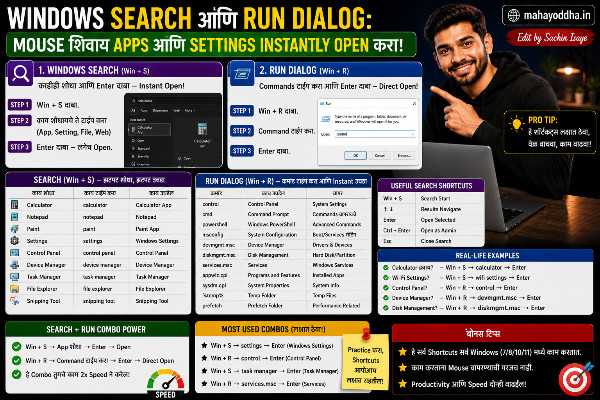
Windows Search आणि Run Dialog — Mouse शिवाय कुठलीही गोष्ट Instantly Open करा
एक simple question — तुम्ही Calculator उघडायला किती steps करतात? Windows Search And Run Dialog.
Start menu, scroll, Apps मध्ये Calculator शोधा, click. तीन-चार steps, पाच-दहा seconds.
Keyboard ने — Win key, “calc” type करा, Enter. दोन seconds.
हे एकट्या उदाहरणाने कळत नाही. पण दिवसभरात Calculator, Notepad, Settings, Control Panel, specific files, commands — हे सगळं mouse ने शोधत असाल तर बराच वेळ जातो. Keyboard ने हे सगळं faster आहे.
आज Mahayoddha.in वर Windows Search आणि Run Dialog properly explain करतो.
Windows Search — Win Key
Win key एकदा दाबा. Search bar येतो. Type करायला सुरू करा.
हे simple वाटतं, पण Windows Search काय काय शोधतो ते माहीत असलं तर powerful tool आहे.
Apps शोधणे
App चं नाव type करा. “chrome” — Google Chrome येतो. “word” — Microsoft Word. “notepad” — Notepad. “calc” — Calculator. “camera” — Camera app.
Partial name पण काम करतं — “chro” type केलं तरी Chrome suggest होतो.
System Settings शोधणे
“wifi” — WiFi settings. “bluetooth” — Bluetooth settings. “display” — Display settings. “battery” — Battery settings. “printer” — Printer settings.
Settings app navigate करण्यापेक्षा directly specific setting उघडतो.
Files आणि Folders शोधणे
File चं नाव type करा — सगळ्या drives मध्ये शोधतो. “project report” type केलं की त्या नावाच्या files दिसतात.
Filter लावणे — “kind:document” — फक्त documents. “kind:image” — फक्त images. “kind:music” — music files. Date filter — “date:2024” — 2024 मध्ये modified files.
Web Search
Search term type करा, Enter — default browser मध्ये search होतो. Quick web search साठी browser उघडायची गरज नाही.
Settings कुठे आहे माहीत नाही?
Windows Search मध्ये type करा जे हवं आहे ते. “change screen brightness” — directly brightness setting येतो. “add remove programs” — Programs & Features. “format” — Format options.
Run Dialog — Win + R
Win + R — Run dialog. Small window येतो. Command type करा, Enter.
हे advanced users साठी आहे — specific tools directly उघडायला, Windows Search पेक्षा faster काही situations मध्ये.
Common Run Commands:
Apps आणि Tools:
notepad — Notepad. calc — Calculator. mspaint — Paint. wordpad — WordPad. snippingtool — Snipping Tool. write — WordPad. explorer — File Explorer.
System Tools:
taskmgr — Task Manager. devmgmt.msc — Device Manager. diskmgmt.msc — Disk Management. compmgmt.msc — Computer Management. eventvwr.msc — Event Viewer. regedit — Registry Editor (careful). msconfig — System Configuration.
Settings आणि Control Panel:
control — Control Panel. control printers — Printer settings. sysdm.cpl — System Properties. inetcpl.cpl — Internet Options. ncpa.cpl — Network Connections. firewall.cpl — Windows Firewall. timedate.cpl — Date and Time.
Folders directly उघडणे:
%userprofile% — User folder. %desktop% — Desktop. %downloads% — Downloads. %documents% — Documents. %appdata% — AppData folder. %temp% — Temp folder.
Network Tools:
ipconfig — IP configuration (CMD मध्ये). ping google.com — Ping test. mstsc — Remote Desktop.
Run Dialog मध्ये URL:
Win + R, “https://mahayoddha.in“, Enter — directly browser मध्ये website उघडते.
[हे पण नक्की वाचा: इमोजी (Emojis) टाईप करण्यासाठी विंडोजचा सिक्रेट कीबोर्ड शॉर्टकट: चॅटिंग करा एकदम कडक!]
Advanced Search Tips
File Content Search
Windows Search filename नुसार शोधतो by default. File च्या content नुसार शोधायचं असेल — Search Options मध्ये “Always search file names and contents” enable करा.
Control Panel → Indexing Options → Advanced → File Types — content indexing enable करा specific file types साठी.
Search Filters
Windows Search मध्ये type केल्यावर top मध्ये filter options येतात — Apps, Documents, Email, Web, Settings.
Specific type filter केलं तर results accurate येतात.
Everything App — Third Party
Windows built-in search slow वाटत असेल तर “Everything” app download करा — voidtools.com, free आहे.
Real-time file search — type केलं की instantly results. Windows Search पेक्षा significantly faster.
Cortana vs Windows Search
Windows 10 मध्ये Cortana आणि Windows Search overlap होते. Windows 11 मध्ये clearly separate झाले.
Windows Search — file, app, settings शोधण्यासाठी. Fast, reliable.
Cortana — voice assistant, AI features. More conversational.
Daily use साठी Windows Search पुरेसं आहे.
Quick Reference — कोणते Commands सगळ्यात Useful
| काय हवं | Method | Command/Type |
|---|---|---|
| Calculator | Win + Search | calc |
| Notepad | Win + R | notepad |
| Task Manager | Win + Search | taskmgr |
| Device Manager | Win + R | devmgmt.msc |
| System Properties | Win + R | sysdm.cpl |
| Network Connections | Win + R | ncpa.cpl |
| Downloads folder | Win + R | %downloads% |
| Temp files clear | Win + R | %temp% |
| Specific app | Win key | App name type |
| Specific file | Win key | File name type |
| Setting | Win key | Setting name |
FAQ
Q. Windows Search results accurate नाहीत — app दिसत नाही. का?
Windows Search index करतो — index update झाला नसेल तर results miss होतात. Settings → Search → Searching Windows → “Index these locations” check करा. “Rebuild” button — index rebuild करा. Time लागतो पण नंतर results accurate येतात.
Q. Run Dialog मध्ये “.msc” commands काम करत नाहीत — का?
Administrator rights लागतात काही .msc commands साठी. Win + R, command type करा, Ctrl + Shift + Enter — administrator ने run होतो. UAC prompt येतो — Yes करा.
Q. %temp% folder मध्ये काय असतं, delete करणं safe आहे का?
Temporary files — apps बनवतात, usually delete करता येतात. Win + R, %temp%, Enter — folder उघडतो. Ctrl + A, Delete — सगळ्या files delete करण्याचा प्रयत्न. काही files in-use असतात — skip करा. Regular cleanup केल्याने disk space free होतो, laptop faster होतो.
Q. Windows Search मध्ये private files दिसतात — search history कुठे जाते?
Windows Search history locally stored आहे — Microsoft ला नाही जात by default. Settings → Privacy & Security → Search permissions — Search history off करता येते. Cortana बंद असेल तर cloud search नाही होत.
Q. Run Dialog history बघता येतो का — आधी वापरलेले commands?
हो. Win + R, down arrow — previously used commands list येतो. Specific command शोधायला type करायला सुरू करा — autocomplete होतो. Useful आहे frequently used commands साठी.
Conclusion
Calculator साठी Start menu scroll करणं बंद झालं — Win key, “calc”, Enter. Settings साठी navigate करणं बंद झालं — Win key, setting name type, Enter.
या दोन habits ने — Windows Search आणि Run Dialog — mouse dependency significantly कमी झाली.
Mahayoddha.in वर keyboard productivity series मध्ये हे important आहे. Apps, settings, files — सगळं keyboard वरून faster access होतं.
आजच एक try करा — Win + R, “%temp%” type करा, Enter — temp folder उघडेल. किती size आहे ते बघा. Clean up करायचं असेल तर Ctrl + A, Delete.
तुम्ही Run Dialog वापरतात का? कोणता command सगळ्यात जास्त वापरतात? Comment मध्ये सांगा.

Sachin Isaye
सचिन इसाये
नमस्कार! मी सचिन इसाये, Founder of Mahayoddha.in. २०१७ पासूनच्या माझ्या Blogging आणि Digital Content क्षेत्रातील अनुभवाचा वापर करून, मी Keyboard, Typing Speed, Windows Shortcuts आणि Digital Skills यांसारख्या विषयांवर सोप्या मराठीत practical माहिती देण्याचा प्रयत्न करतो.
Keyboard Buying Guide, Mechanical Keyboard, Wireless Keyboard, Keyboard Problems, Keyboard Typing Skills आणि Keyboard Ergonomics यांसारखे विषय सामान्य मराठी वाचकांना सहज समजावून सांगणे, हेच माझे काम आहे.
विद्यार्थी, Bloggers, Content Writers, Office Users, Work From Home करणारे आणि नवीन computer users यांना keyboard वापरून आपलं काम जलद, सोपं आणि smart करता यावं, हेच माझं ध्येय आहे. नवीन Keyboard Guides, Typing Tips आणि Windows Shortcuts साठी Mahayoddha.in ला नियमित भेट द्या.